You know that you can drag and drop an image directly into the WordPress Block Editor. And you know it’s a really, really good idea to put alt text on it because screen readers and other assistive tech.
So, you type (or apparently you generate) the alt text in the image’s block settings:
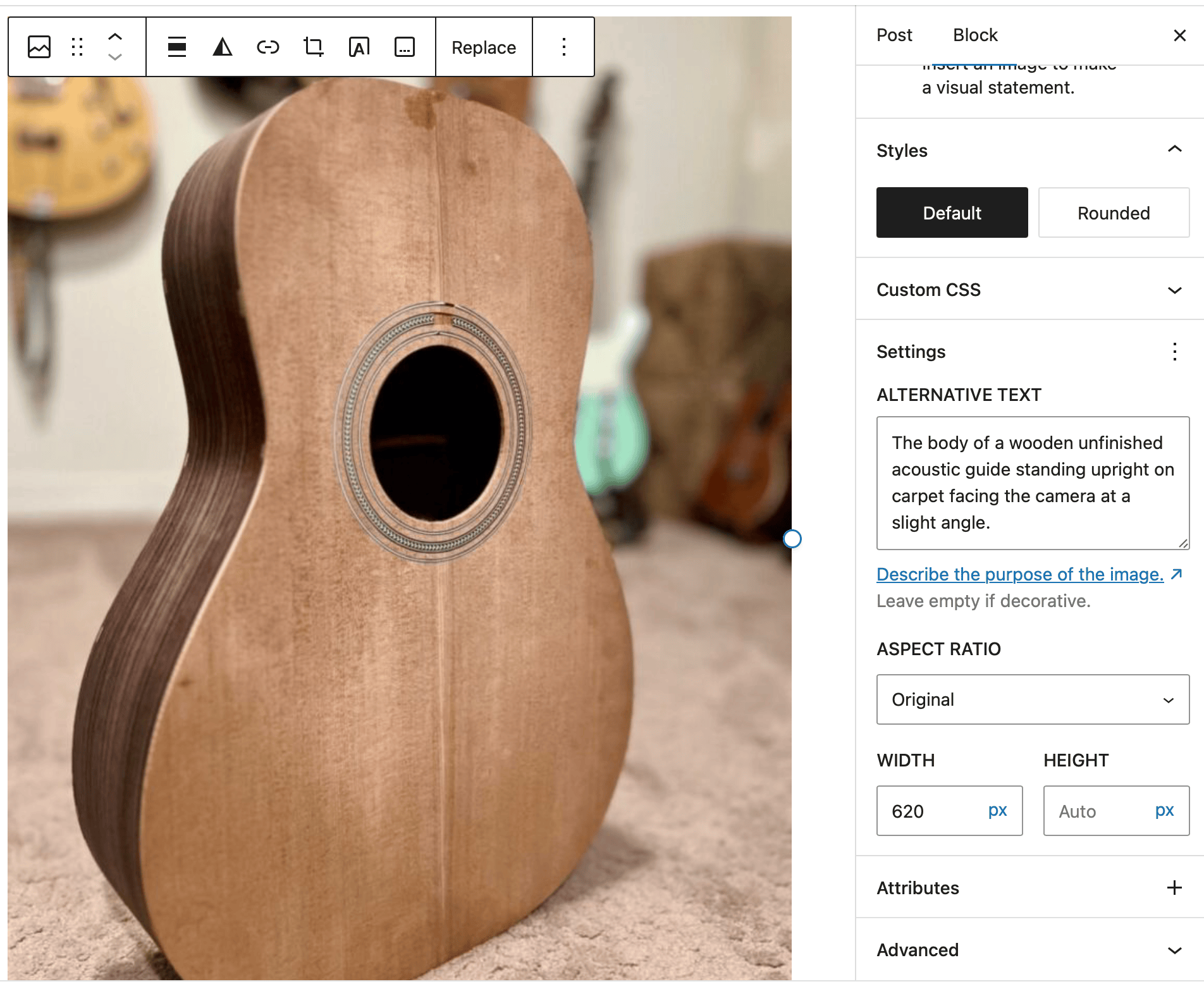
Yay, an accessibility win! High fives. ✋
Sometime later, you decide to write another post that uses the same image. So, you open up the Media Library from the post editor and select the image:
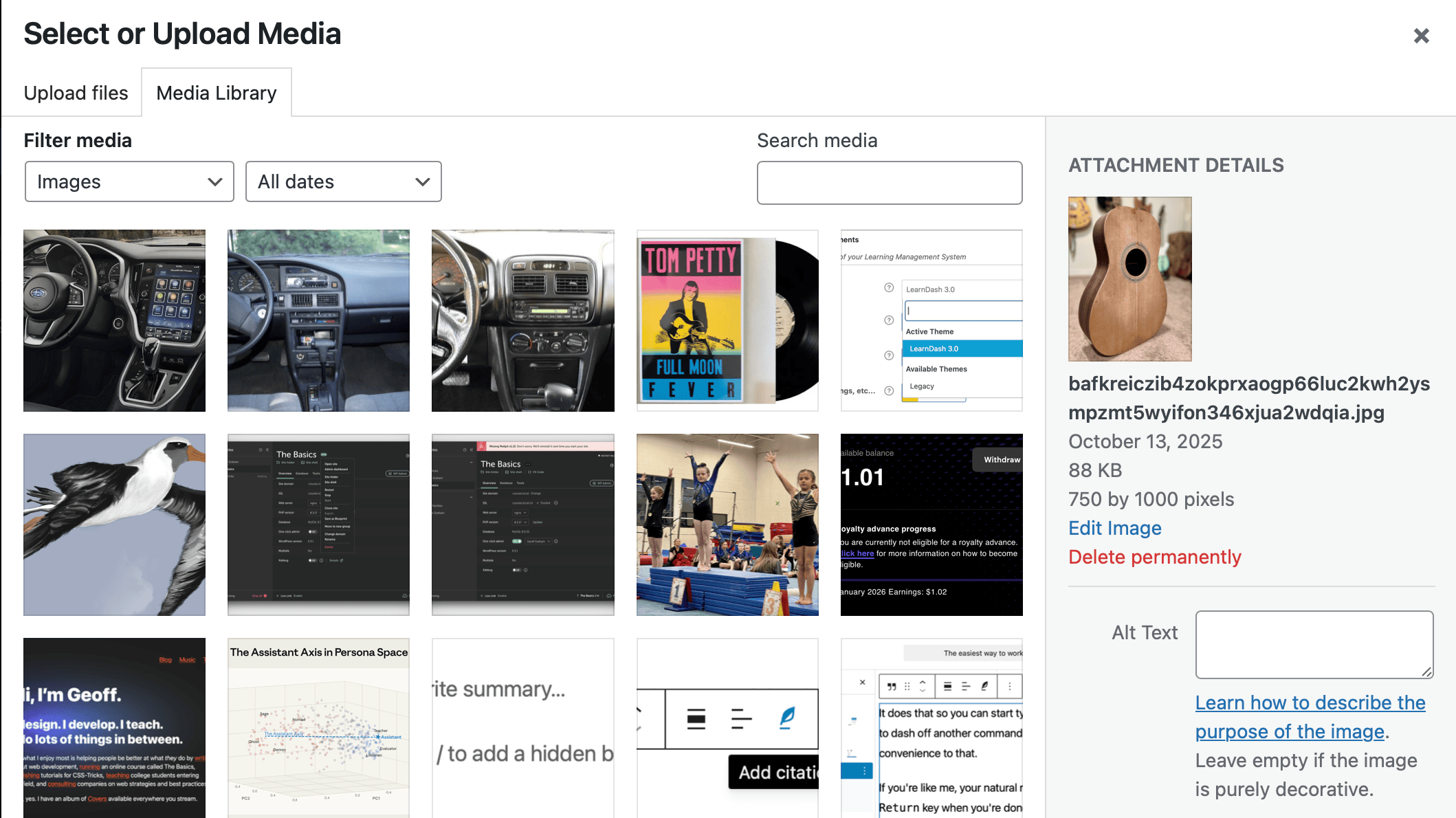
Where the heck did your carefully crafted alt text go? It only lives in the first post, so globally, it’s empty.
That does make sense. Plopping an image into a specific post should allow you to override the global image alt after all. And WordPress can’t really assume you always want alt text. It also can’t assume that whatever the first or latest instance of the image’s located alt should be retained and override the global setting.
My habit: Plop that image in the post editor, smash the “Replace” button on it, then type the text in the Media Library modal. Then it’s preserved anywhere the image is used.