When a user attempts to run a file with elevated privilege, Windows will show a User Account Control elevation prompt that asks whether the user trusts the file to run.
For a regular file, the user will see a prompt like this:
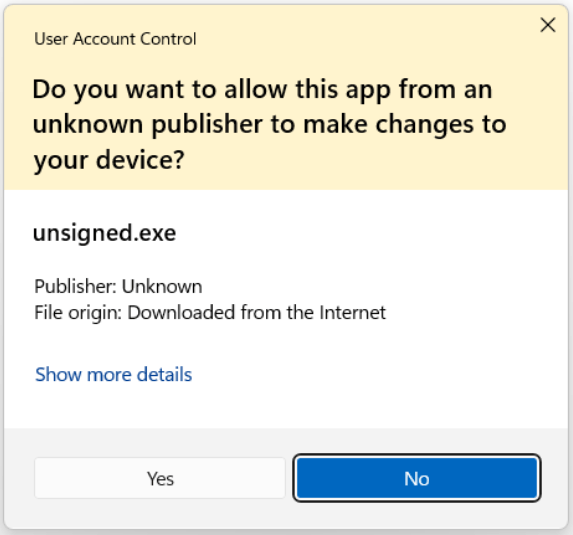
For a file signed by a certificate in the Untrusted Certificates store, elevation is explicitly blocked:

For a file with a trustworthy signature, the user is expected to see a prompt like this one:

However, I’m sometimes sometimes surprised to encounter a different behavior when running signed files.
Surprise #1 – Windows Files are Special
The first surprise occurred last year when we were working testing the Defender Deployment tool. If we looked at the executable in File Explorer’s Properties dialog, we saw that it was correctly signed:
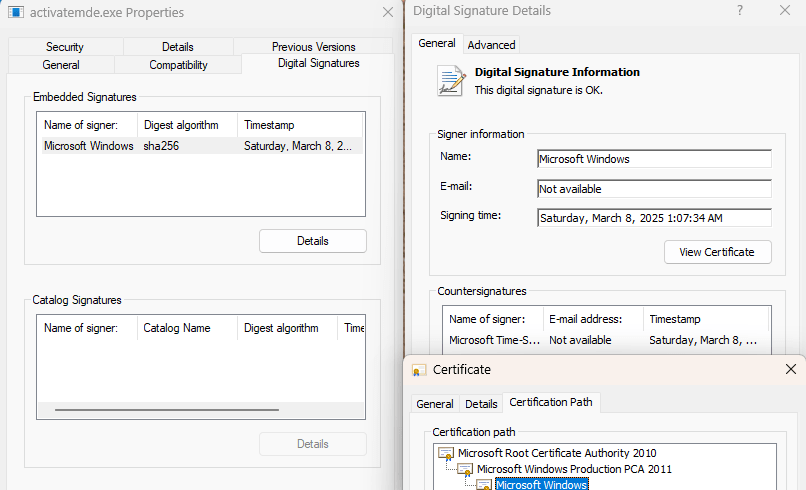
However, when double-clicking the file in Explorer, the UAC prompt behaved as if the file were not signed.

What gives?
After investigation, I learned that UAC has a special carve out for files that are signed by the Windows Build lab. If such a file is encountered outside of a limited set of directories deemed “secure” (e.g. %systemroot%\system32) the file is treated as unsigned.
Windows executables are non-hermetic so running them from untrustworthy locations can have dangerous outcomes. Showing the file as unsigned is intended to discourage a user from doing this.
Surprise #2 – Chain Building
Today, I was downloading the updater for the latest update to Telerik Fiddler and unexpectedly encountered the Unknown Publisher UAC prompt. Before I fired off a flaming tweet to the team, I double-checked the binary and…

What? I immediately thought of the “only special folders” case I hit last year, but of course this third-party file wasn’t signed by the Windows build lab:
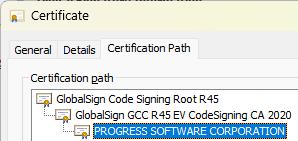
To double-check, I looked at the same file on a different machine, where the correct UAC prompt appeared showing the expected publisher. Hmmm…
I asked Gemini, which hallucinated a plausible but incorrect answer:

I knew this guess was wrong right away because I’ve studied the MoTW behavior extensively for decades. Gemini’s second guess was better:
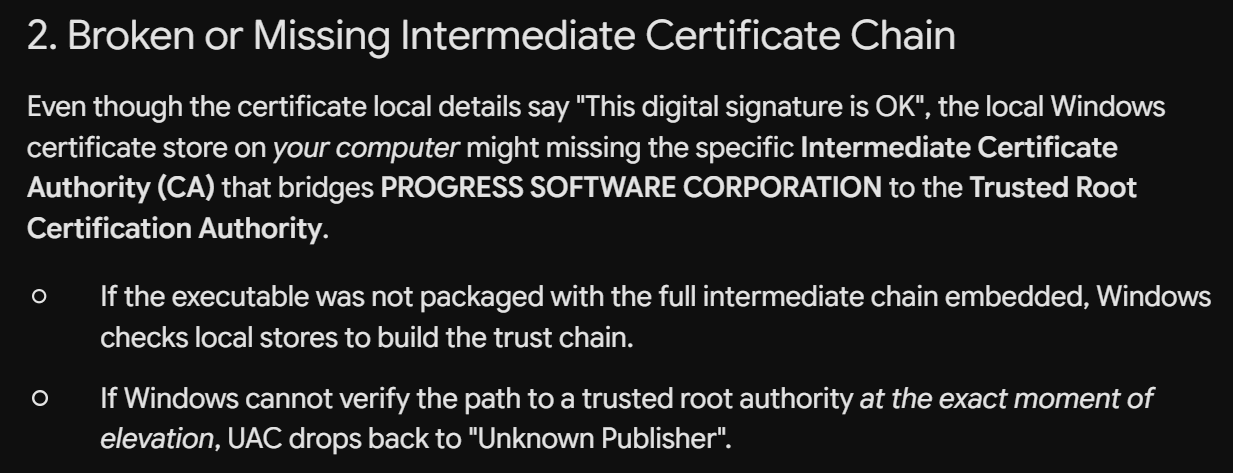
This guess was non-hallucinated and plausible, but the fact that the File Properties dialog showed the file as correctly signed implied that this guess was wrong.
Still. I looked at my affected machine’s Trusted Root Certification Authorities stores. Note the s there– your trusted roots are a merge of two storage areas, one for your local user account, and one for your local machine.
And here’s where things get interesting: I’ve got the GCC R45 Intermediate certificate in my local user account but not for the local machine:
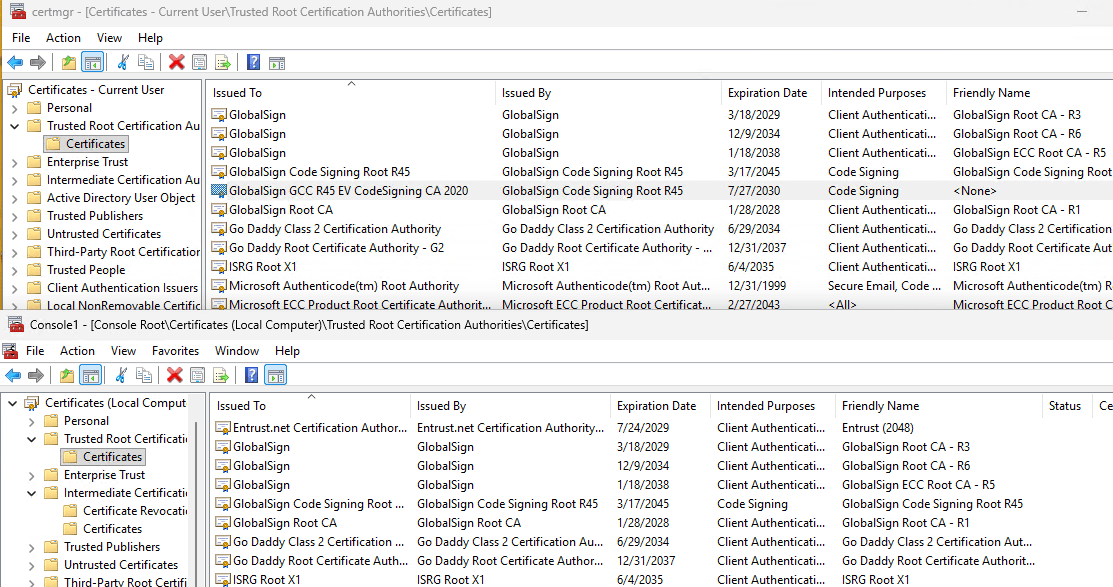
That seems… weird. Weird enough to be an explanation. I complained to Gemini that it had gotten it wrong, but didn’t wait around for its insightful answer:

Instead, I used an old signature troubleshooting trick, enabling CAPI2 Logging in the Windows Event Viewer, and getting another data point. The problem was indeed that consent.exe (the UAC prompt) was failing to build a chain to a trusted root.

At that point, I used the certificate viewer to export the GCC root from the local user store and imported it into the local machine store.
Success!

Now, unlike Gemini, I have access to the source code to Windows, so I went off to discover exactly what it had already told me in my forgotten browser window:

Gemini further suggested that I try using an Elevated command prompt to verify the file’s signature:
signtool verify /pa /v "FiddlerClassicAutoupdater.exe"
… but Gemini failed to recognize that using an elevated command prompt isn’t going to use the non-working SYSTEM context. My user account, even elevated, will verify the signature just fine:

Finally, only one real mystery remained: How did I have the correct intermediate in the local user store and why didn’t whatever magic put it there get it into the local machine store too?
AIA Fetching
By default, when Windows builds a certificate chain, if it cannot find the Intermediate certificate that the signing certificate chains to, it will look for a place to download that Intermediate using a process called Authority Information Access (AIA). And indeed, you can see the intermediate certificate’s URL right there:

As a part of chain building for a normal certificate validation, WinVerifyTrust will fetch the intermediate, confirm that it validly chains to a trusted root, and then use it to complete the chain.
Unless you tell WinVerifyTrust not to do that.
And, indeed, it turns out that UAC‘s consent.exe code disables URL fetching by passing the WTD_CACHE_ONLY_URL_RETRIEVAL flag into its WinVerifyTrust call. This flag prevents hitting the network to fetch information related to the certificate. Most of the time, that flag means not fetching a CRL or OCSP URL to see if the certificate was revoked, but the flag also controls whether AIA is used to fetch any needed intermediates in the rare instance that such an intermediate is missing locally. Like this one.
And there we have it. Explorer’s File Prompting and UAC’s Consent Prompt exhibit different behavior because Explorer’s signature verification uses the user’s certificate context and fetches intermediates via AIA, while UAC uses the system context and refuses to fetch intermediates. One way a software developer can help prevent this problem is to embed the intermediate certificate into the file’s Authenticode signature directly using the ac parameter to signtool.exe.
Stay authentic out there!
-Eric